From order to bill, one system.
POS and checks, kitchen display, QR menu, delivery, stock and reports. One app for restaurants, cafés and bars.
14 days free. No card required.
- Free trial, no card required
- 14 days
- Free trial, no card required
- Selling continues when the internet drops
- Offline
- Selling continues when the internet drops
- Never reaches PergePOS
- Card data
- Never reaches PergePOS
Everything a venue runs on, in one app
Tables, kitchen, till, stock and reports draw on the same records. You see where an order came from, who sent it and how it was paid, in one place.
Open the table, take the order, close the bill.
Table service, quick service, delivery and takeaway share one check model. Split by guest, item or equal parts; shifts, cash drawer and Z report on the same terminal.
- Floor plan by area; move and merge tables
- Orders with options and notes, sent to the kitchen round by round
- Cash, card, meal cards, house accounts and split payments
- Selling continues offline and syncs when the connection returns
Explore the POSOn the counter tablet a table is opened, items are added with options, sent to the kitchen, paid by card and the check is closed. Orders reach the kitchen paperless, in sequence and timed.
Every round becomes a ticket per station. Tickets change colour when they pass the target time; the ready status reaches the waiter's terminal by itself.
- Separate stations for kitchen, bar and desserts
- Preparing, ready, served; a ticket closed by mistake can be recalled
- Works with a printer or without one
- Runs in the tablet app or in a browser
Explore the kitchen displayA new ticket from table S10 lands on the kitchen screen; the cook taps Start, then Ready when it is done, and the ticket moves to the Ready column. Guests scan the code on the table and order without installing an app.
Menu, prices and stock come from the same records as the POS. Orders reach the kitchen once staff approve them; guests call the waiter, see their bill and pay by link.
- No app or account needed
- Multilingual menu in your venue's colours
- Call the waiter and order for pickup
- Sold-out items close on the menu by themselves
Explore the QR menuA guest picks two Adana kebabs from the table's QR menu, adds hot sauce and sends the order; a QR order badge appears on the counter POS, the order is approved and the guest's screen switches to “Order received”. Phone, takeaway and online platform orders on one screen.
Assign couriers, draw delivery zones on the map and track each delivery. Online platform connections open with each platform's partner approval; their current status is below.
- Courier app: on the way and delivered
- Delivery area with zones and a map
- Order status to the customer by SMS
- Delivery orders reach the kitchen display too
Explore deliveryA new phone order lands on the delivery board and is accepted; a ready order is assigned to the available courier on the map. Online ordering connections
- Status: Awaiting partner approvalYemeksepeti, Getir Yemek, Trendyol Yemek, Migros Yemek
Every portion sold leaves stock through its recipe.
Purchases, counts, waste and transfers between branches in one ledger. With moving weighted average cost you see the margin of every item.
- Automatic stock deduction by recipe
- Suppliers and purchase records
- Counts, waste and branch transfers
- Alerts when an ingredient runs low
Explore stock controlStock levels are filtered to critical items, a count is started, the difference is calculated as counted amounts are entered and the count is completed. Today's revenue, best sellers and cash, on your phone.
Sales, item, payment, staff and branch reports in the web panel and the manager app. You get a notification when the Z report is ready.
- Comparison with the previous period
- Branch and staff performance
- CSV and Excel export
- Ask PergePOS Assistant in plain language
Explore reportsIn reports the period is switched from the last 7 days to the last 30; the revenue, check and guest cards and the daily chart update.
A screen of their own for everyone on the team
The same app becomes the till, the waiter terminal, the kitchen display or the manager panel, depending on the device's role. Staff sign in with a PIN and see only what they are allowed to.
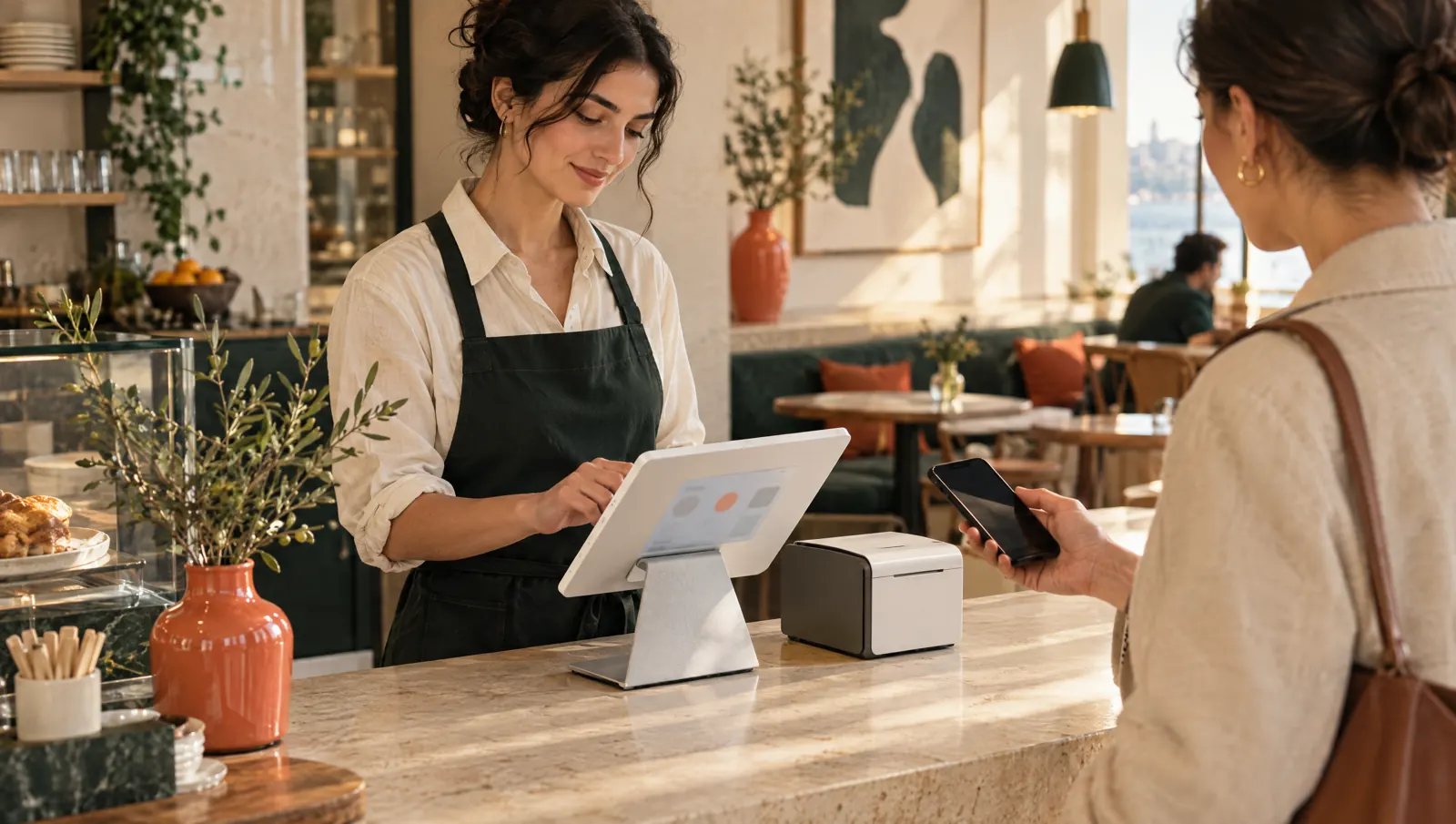
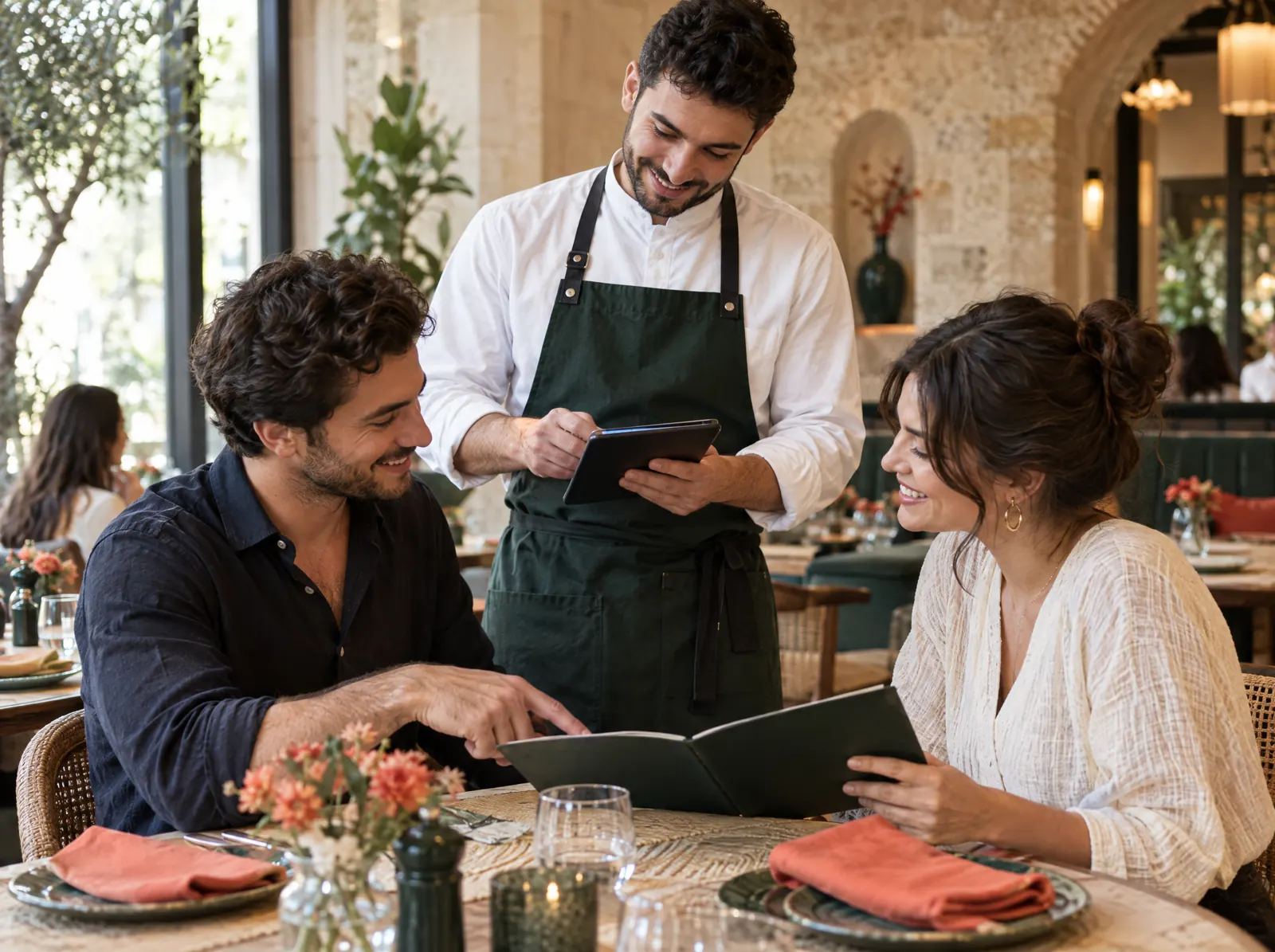
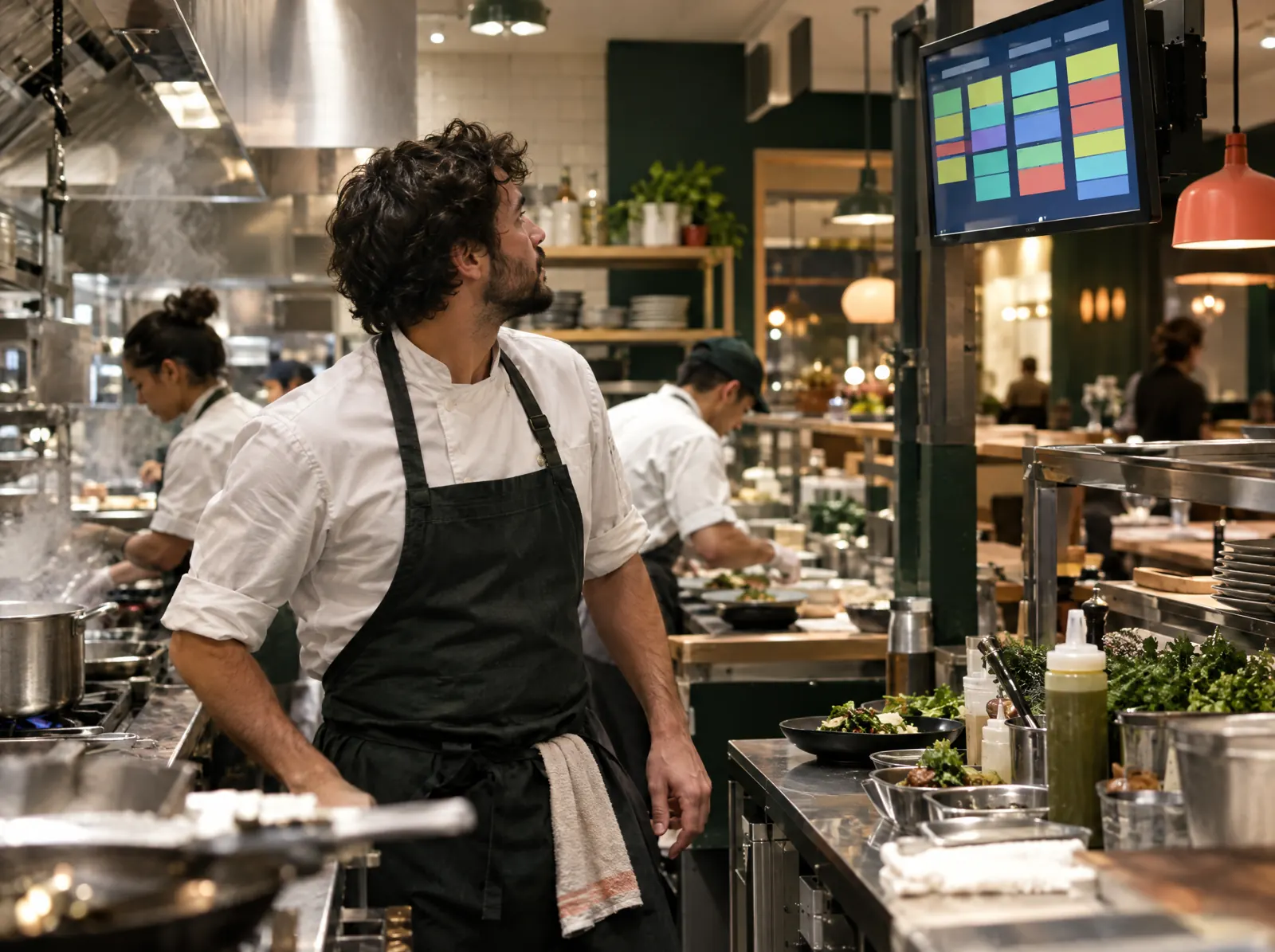
Service runs itself.
Tables, kitchen, couriers and the till share one record. Your team works from screens, not phone calls; you see what happened from a notification.
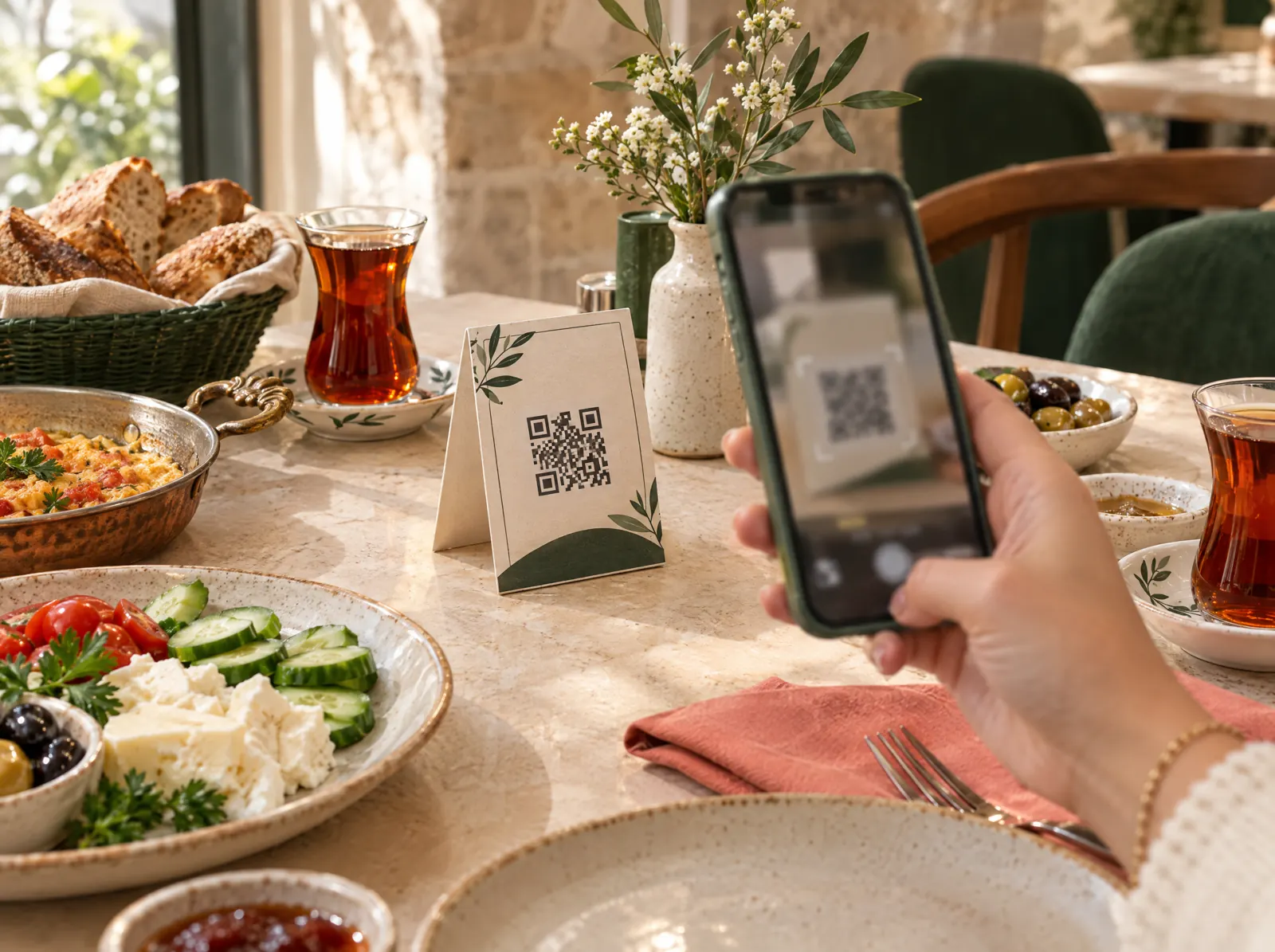 Table 12 · QR orderNew3 items, awaiting approval.
Guests order from the table
Orders from the QR menu reach the kitchen once staff approve them; the bill closes with a payment link.
QR menu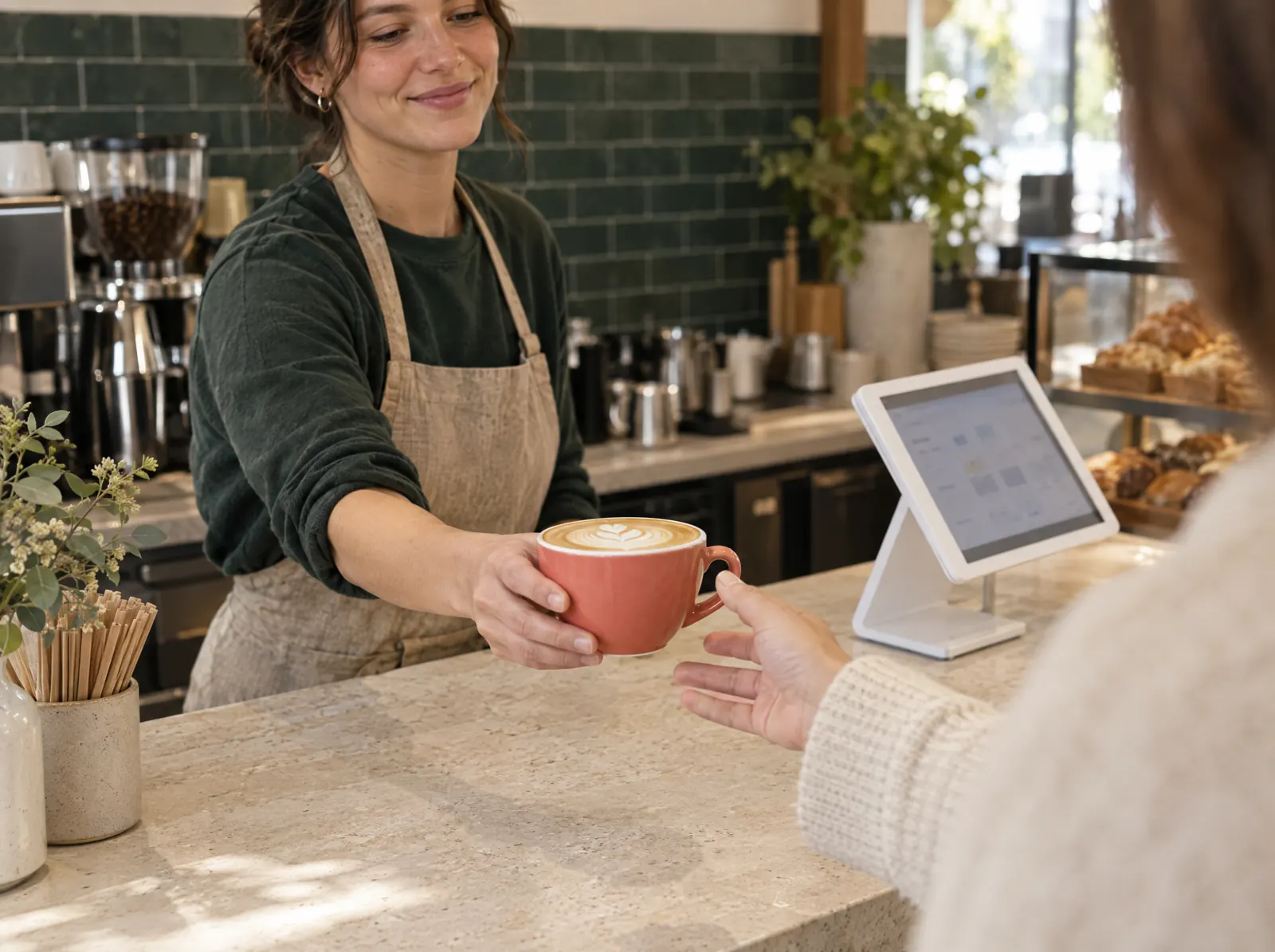 Pickup · Number 42ReadyOrder ready, guest notified.
Quick sale at the counter
Without tables, the item grid, barcode and payment share one screen; guests are called when their pickup order is ready.
Quick sale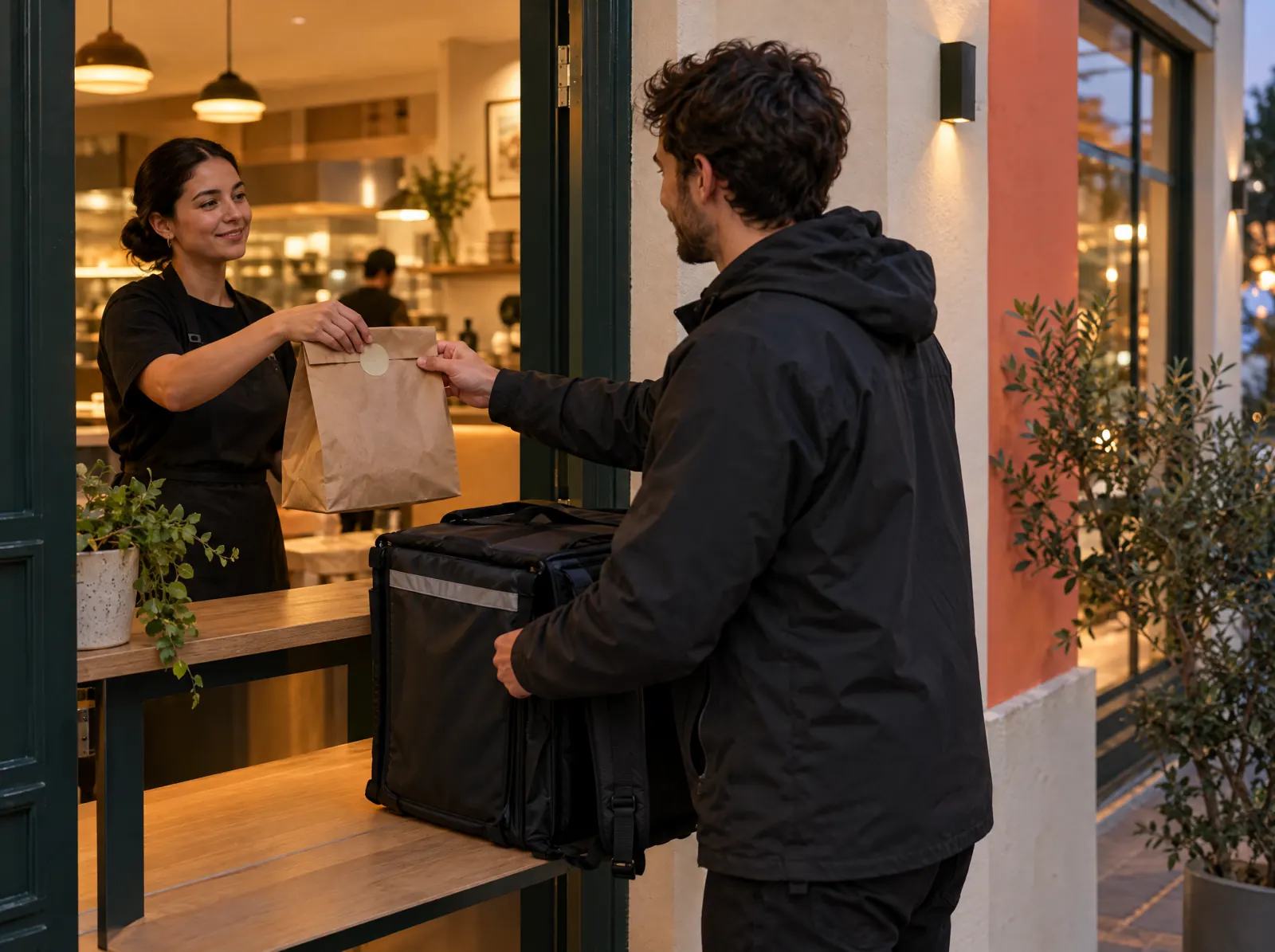 #1046 · Courier on the wayOn the wayEstimated arrival in 8 minutes.
The courier sets off
When a delivery order is ready it reaches the courier app; the customer follows its status by SMS.
Delivery Reservation · 20:30Confirmed4 guests, Garden 7.
Reservations land on the table
Web and phone reservations show on the floor plan; waitlist and deposits in the same place.
Table reservations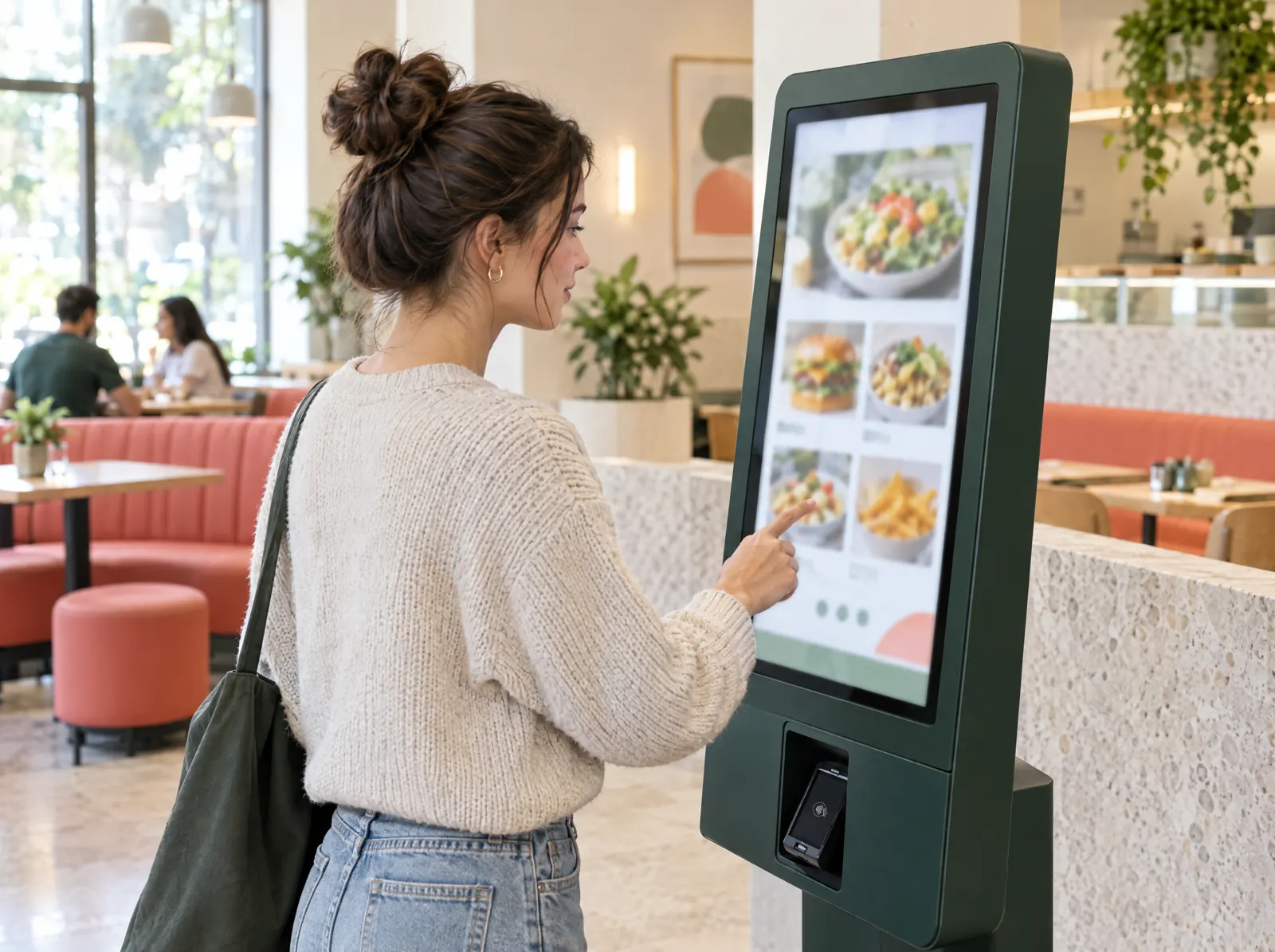 Kiosk · Order 118NewAwaiting payment at the till.
Self-service at the kiosk
Guests order on the kiosk screen and wait for their number; payment is taken at the till or on a contracted payment device.
Restaurant kiosk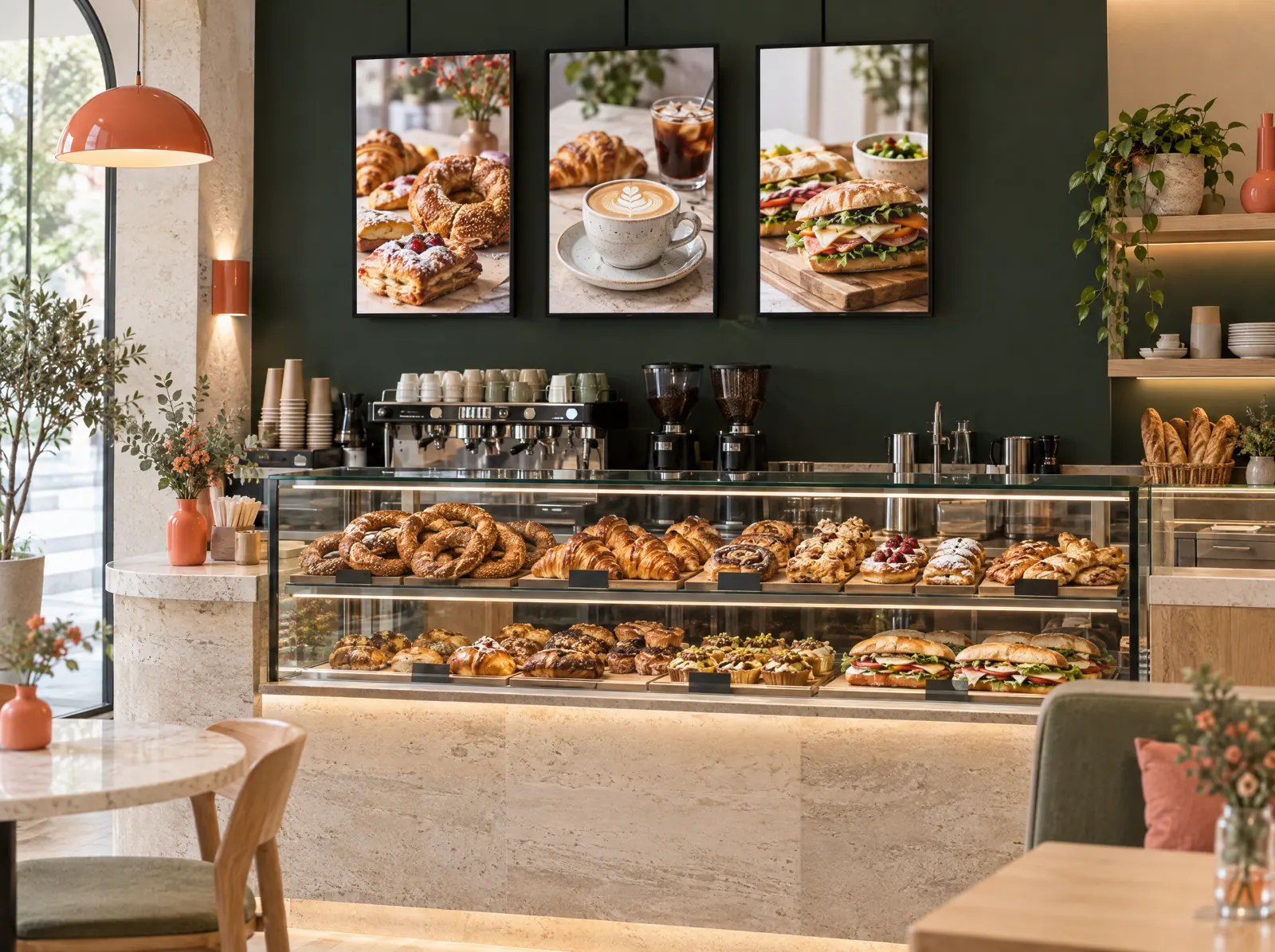 Menu screen updatedLiveDinner menu opened at 17:00.
The menu screen updates itself
When a price or stock level changes, so does the menu screen; breakfast and dinner menus switch on schedule.
Menuboard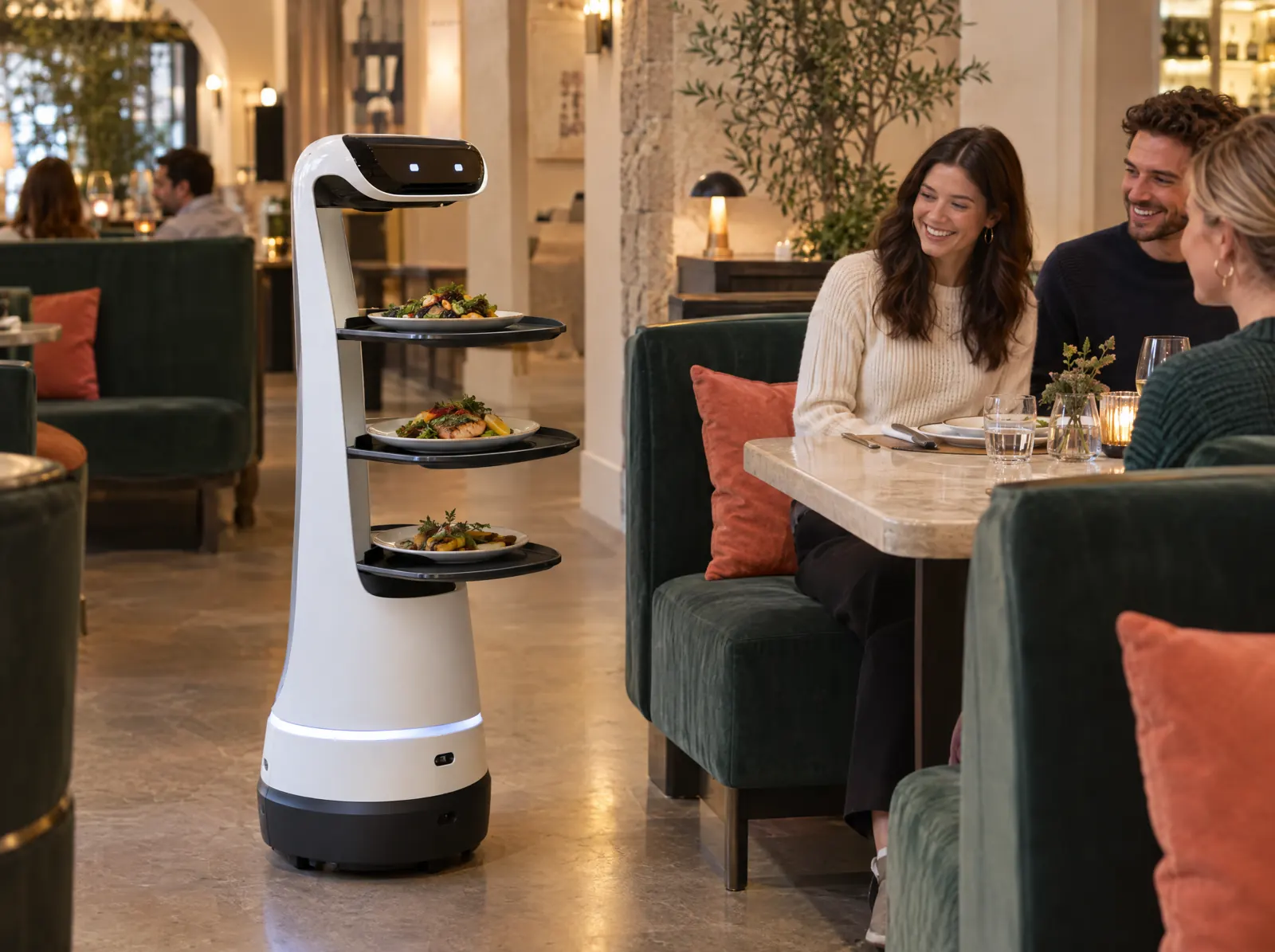 Robot · Table 4DoneService task completed.
The service robot goes to the table
Service tasks from the POS are passed to the manufacturer's system; a notification arrives when the robot reaches the table. The manufacturer connection opens after partner verification.
Service robot
- What's today's best seller?
- How did yesterday's revenue compare with last week?
- Ingredients running low
- Compare the Kadıköy and Moda branches
- Who sold the most this week?
- Which device is offline?
- Who changed the menu price?
- Who on the team can do what?
Meet PergePOS Assistant.
Ask about your venue in plain language. The assistant only sees what your role allows, and asks for your approval before changing a record.
The assistant is in the web panel and the manager app; it has a monthly usage limit.
Built on secure foundations
The till, guest details and staff records live in one place, so roles, audit trails and encryption come first.
- Owner, manager, branch manager, accountant and viewer; cashier, waiter, kitchen and courier. Everyone sees only the branches and actions they are allowed to; voids, large discounts and comps need an approval PIN.
- Voids, refunds, comps, discounts, opening the cash drawer, price changes and Z reports are written to the activity history; frequent voids or large discounts raise a notification.
- When the internet drops, the POS and waiter terminal record transactions on the device and send them in order once the connection returns. The same transaction is never applied twice.
- Card payments are taken on the venue's payment device or by the payment institution. Card numbers never enter PergePOS and are never written to records or logs.
- Connections are encrypted with HTTPS. Payment institution and integrator keys are stored encrypted; staff PINs are kept as a hash, never as the PIN itself.
- The QR menu is anonymous. Loyalty requires phone verification, a privacy notice and separate explicit consent; guests can ask for their data to be deleted. Loyalty data belongs to the venue; PergePOS is the data processor.
How many branches do you have?
Prices are per branch per month, excluding VAT; pay yearly and 12 months cost 10.
Monthly total for 1 branch, excluding VAT:
Starter
990 ₺
per month, excl. VAT
Standard
1,690 ₺
per month, excl. VAT
Pro
2,490 ₺
per month, excl. VAT
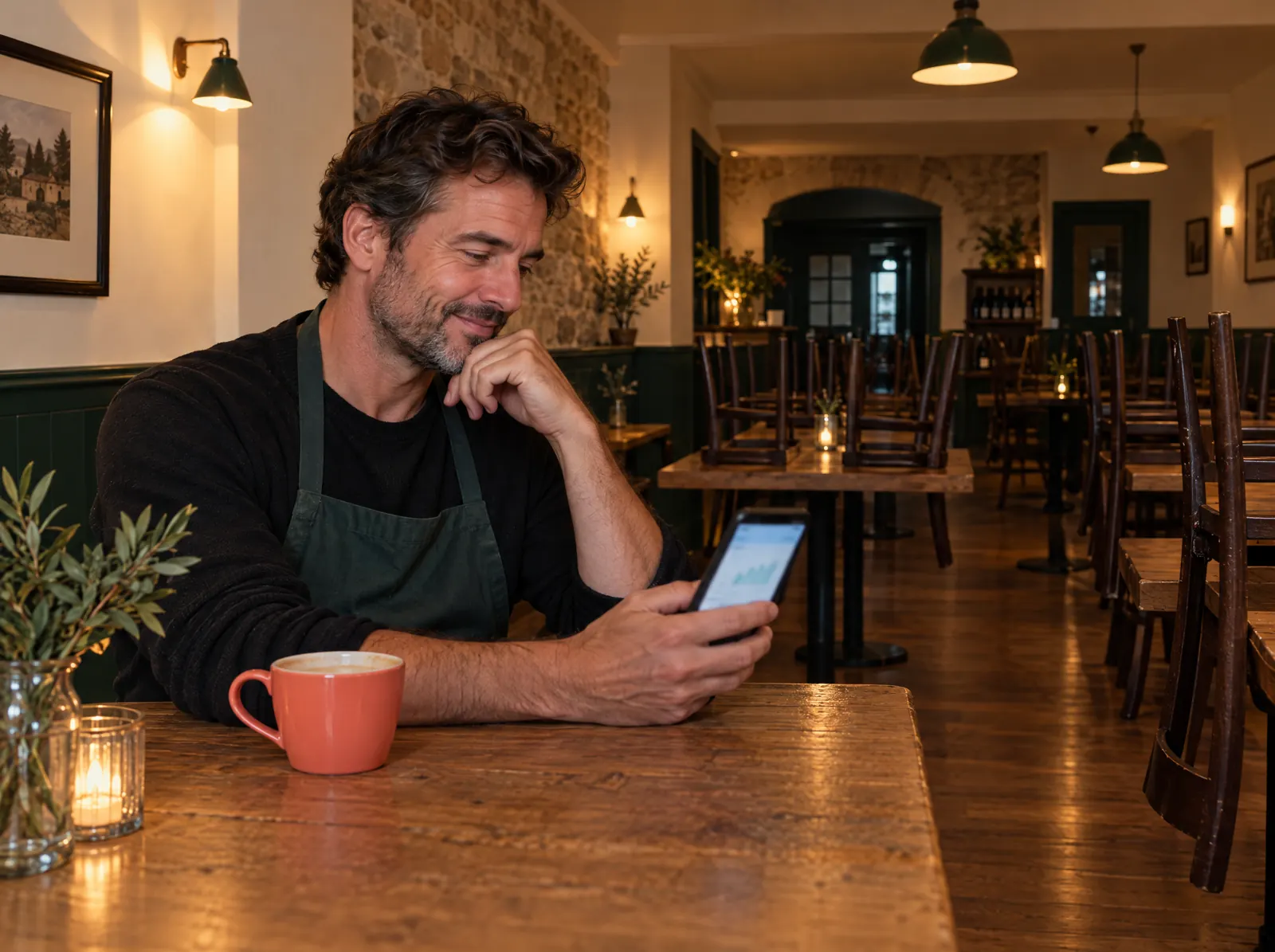
Your branch, in your pocket.
The manager app shows today's revenue, best sellers and the Z report. Your guests order from the table on the same system.
Start selling in six steps.
The setup wizard saves every step, so you can pause and pick up where you left off. You can import your menu from Excel.
Step 1: Open your account
Verify your email and phone, then enter your venue's name, type and city. The trial starts by itself.
Step 2: Set up your branch
Your first branch opens automatically; choose service types, VAT and fiscal document settings. Add more branches to the same account.
Step 3: Build the menu and tables
Upload your menu from Excel or start from a template; define areas, tables and printers.
Step 4: Pair your devices
Tap "Pair device" in the app, enter the six-character code from the panel and pick a role: POS, waiter, kitchen or courier.
Step 5: Give staff their PINs
Cashiers, waiters, kitchen and couriers sign in with their own PIN; no email account needed.
Step 6: Start selling
Open the first check. Reports, stock and cash start filling from the first sale.
A starting point for every venue.
From restaurants to beach clubs, coffee shops to hotel restaurants: for each type we describe a day's flow, the suggested modules and a typical setup on its own page.
 RestaurantTable service, split checks, kitchen display and reservations.
 BarOpen tabs, quick counter sales, time-based price lists and stock.
 CaféTable and counter sales together; QR menu and loyalty points.
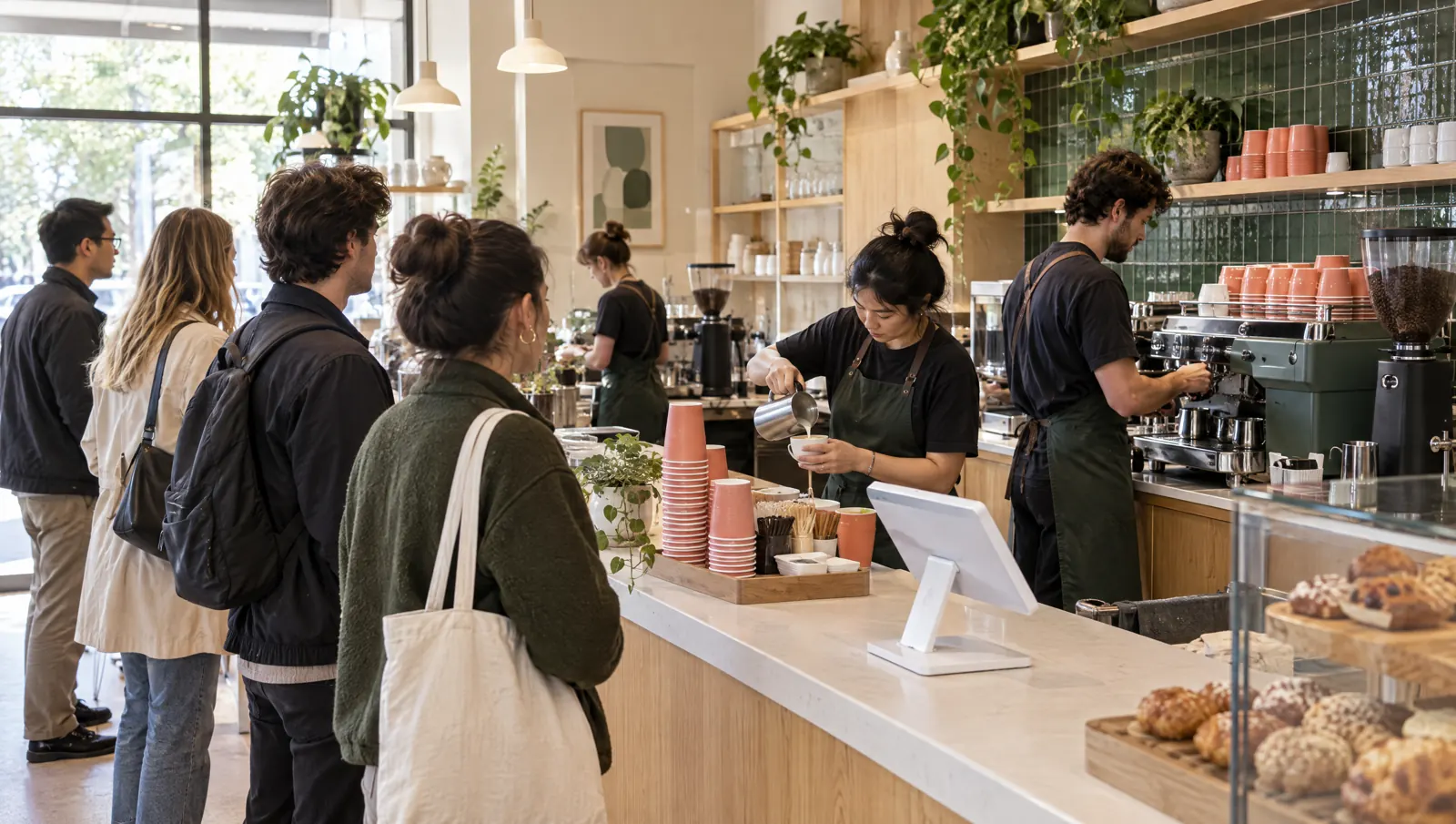 Coffee shopQuick counter sales, bar screen, call numbers and loyalty points.
 Beach clubSunbed and table zones, waiter handheld, payment by QR.
 Hotel restaurantMultiple revenue centres, time-based price lists, multilingual QR menu.
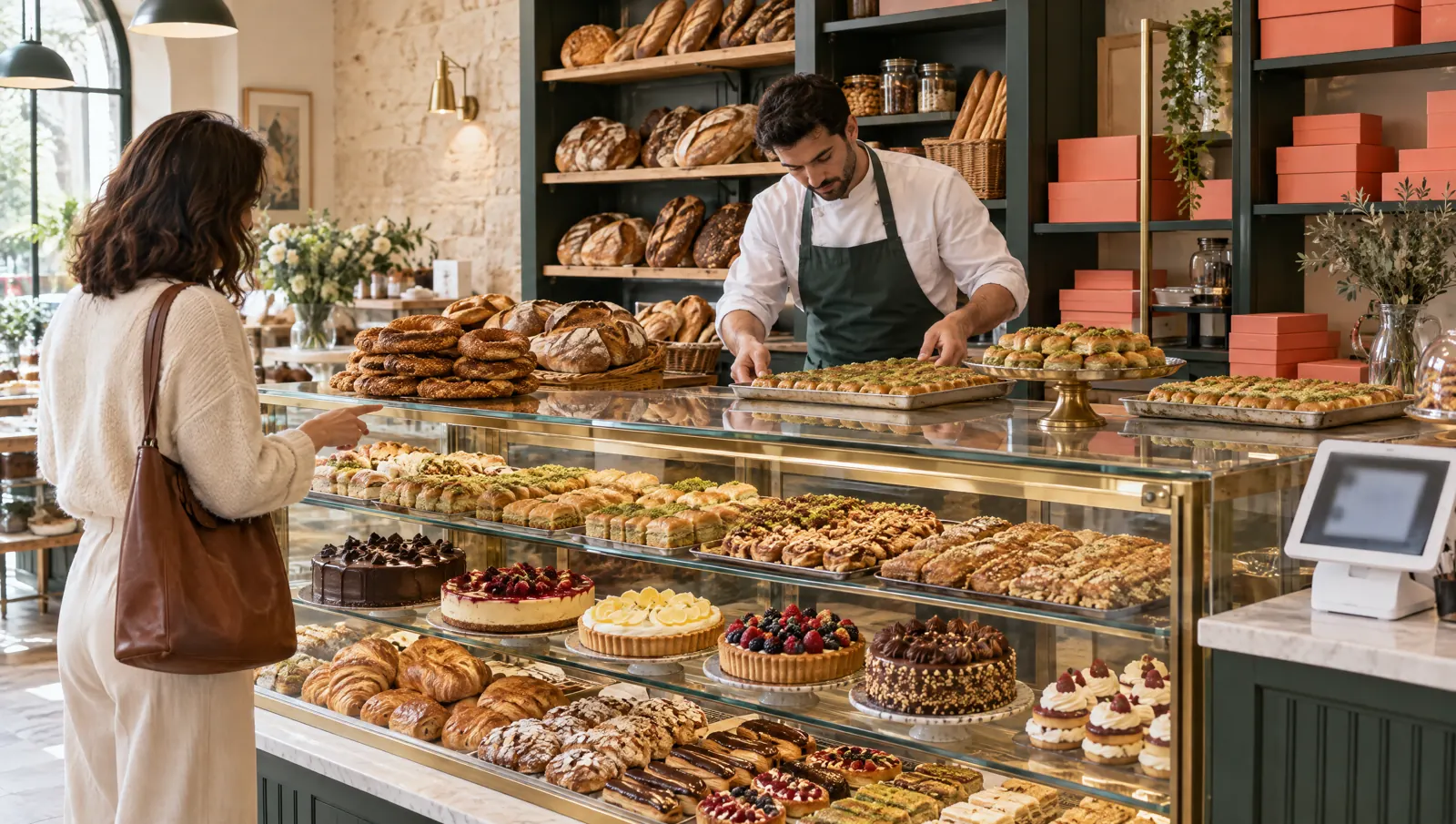 RetailQuick sale with barcodes and scale barcodes, production, stock and counts.
- All business types
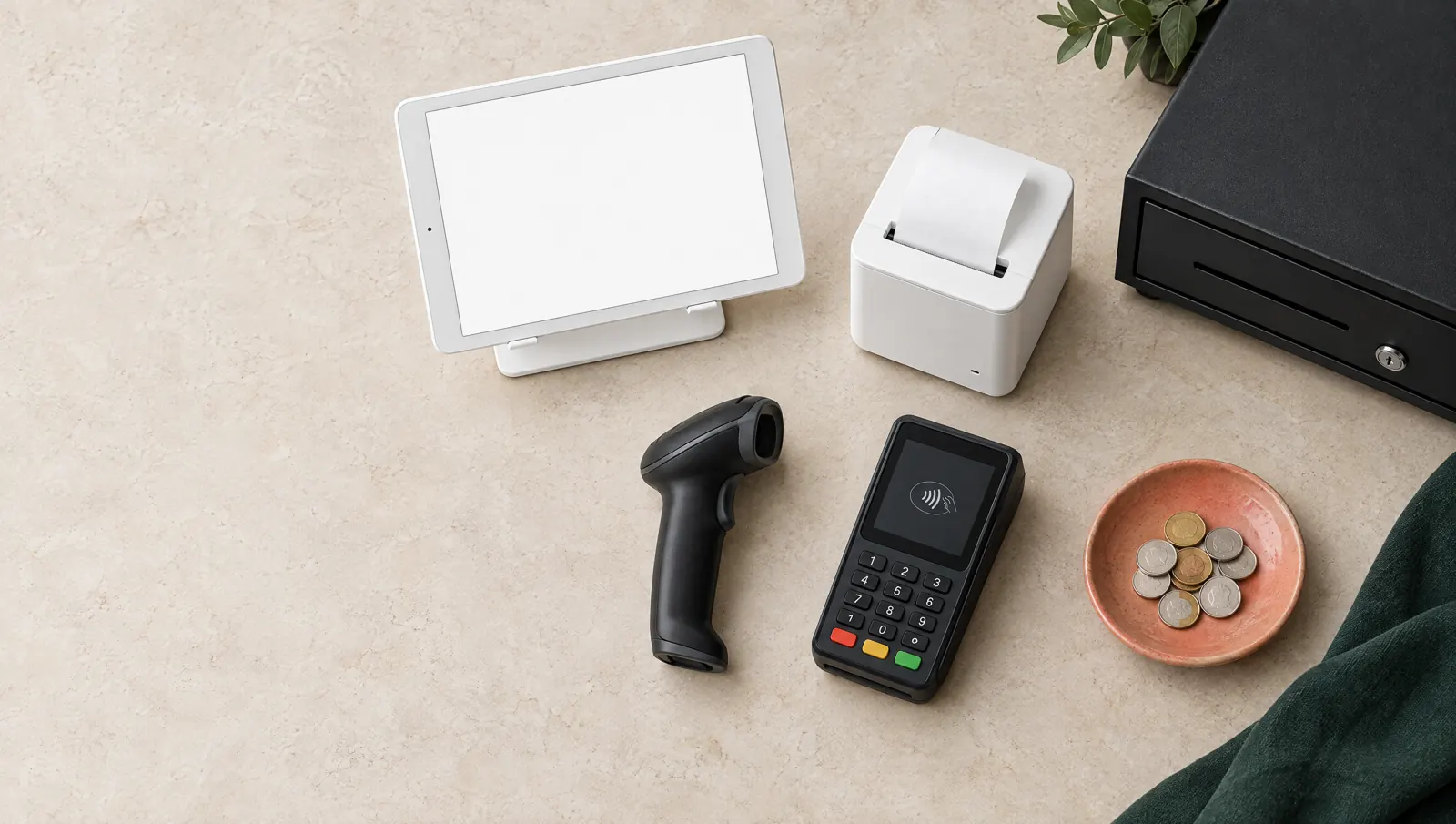
Start with the devices you have.
No brand or model requirement; the device only has to meet the requirements. A verified model list will follow the pilot venue tests.
- A tablet on iPadOS 15.1 or Android 7.0 or later, or a browser on a computer
- ESC/POS receipt and kitchen printers, 80 or 58 mm, over the network (TCP 9100)
- A cash drawer connected to the printer, a keyboard-emulation barcode scanner
- A tablet, mini PC or smart TV running a browser for kitchen, kiosk and menu screens
Frequently asked questions
Can't find an answer? Write to us.
How does the trial work?
A 14-day trial at Pro scope starts by itself when you create an account; no card is required. If you don't pick a package at the end, the panel becomes read-only and your data is kept.
Does selling stop when the internet drops?
No. The POS terminal and waiter handheld record transactions on the device and send them to the server in order once the connection returns. QR menu, delivery and reports need a connection.
What devices do I need?
A tablet or phone is enough; a printer, cash drawer, barcode scanner, payment terminal and kiosk are optional. There is no brand requirement: the hardware page lists each device's requirements. PergePOS doesn't keep hardware stock; hardware is quoted as a separate item.
How are fiscal receipts issued?
The PergePOS check slip is not a fiscal document. Fiscal receipts are issued on the business's cash register (ÖKC); e-Archive and e-Invoice are issued through a private integrator the business chooses. The current status of new-generation ÖKC and integrator connections is on the integrations page.
I have several branches; how is it priced?
The subscription is per branch; all branches are paid on one invoice. Menu, tables, checks and stock are kept per branch; customers and loyalty per business. We prepare quotes for ten or more branches.
Can I switch from another system?
Import your menu from an Excel or CSV file, or start from a template. Floor plan, printers and staff take a few steps in the setup wizard; if you get stuck, we set it up with you.
Can I use PergePOS right now?
PergePOS is in preparation and modules open in stages. Tell us about your business; we'll say in the quote conversation which module will be ready when.
Open your first check today.
For 14 days the Pro plan's modules are open, no card required. Write to us wherever you get stuck during setup.